Tutorial 7 of 9
Trace artwork into editable SVG paths
Beginner 7 min
Turn a raster logo or flat illustration into real vector shapes, refine colors and holes, and save, share or export the result.
Open Vector Lab
Choose Vector Lab on Lumina's editing rail or in the Tools panel, or open /app#vector. Under Start with a sample you can try Alpine badge, Ring emblem, Herb study or Pixel star before you use your own artwork.
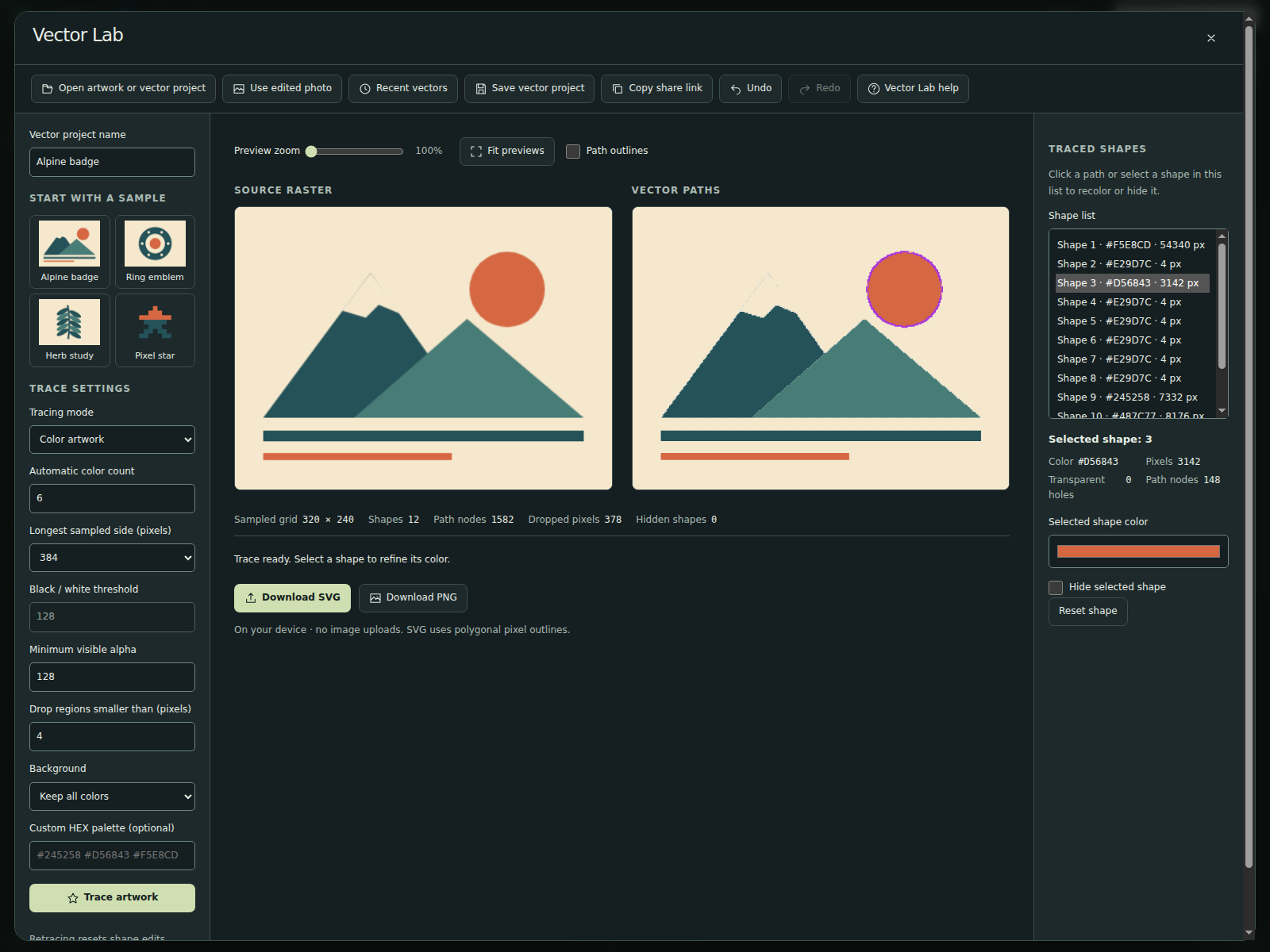
Open artwork or vector project accepts PNG, JPEG, WebP and GIF (first frame) up to 8 MB and 16 megapixels, as well as saved .lumina-vector.json projects. You can also drop a file onto the studio. Use edited photo copies your current Lumina edit. Everything runs on your device; nothing is uploaded. Imported artwork is reduced to at most 512 pixels per side and stored as a PNG inside the vector project.
Choose the trace
The Trace settings decide how the image becomes shapes:
- Tracing mode: Color artwork finds colors automatically; Black and white splits light and dark at the Black / white threshold.
- Automatic color count sets 2 to 16 colors. For exact brand colors, type 2–16 six-digit HEX values into Custom HEX palette (optional), separated by spaces or commas. A custom palette replaces the automatic colors.
- Longest sampled side (pixels) controls detail from 64 to 512. Lower values give fewer, simpler shapes.
- Pixels below Minimum visible alpha become transparent; all others become opaque.
- Drop regions smaller than (pixels) removes tiny connected regions, such as anti-aliased edge pixels. They become transparent and are not filled from their neighbors. Use 0 to keep every region.
- Background → Remove dominant border color deletes every region of the most common color on the image border, including interior details of that color. Choose Keep all colors when that would erase part of the artwork.
Choose Trace artwork to apply the settings. Tracing runs in the background while the status line reports progress; Cancel tracing goes back to the previous trace. If a trace would exceed 2048 shapes or 60000 nodes, Vector Lab explains the limit and, when the previous trace is still available, restores it together with its settings. New artwork is traced with the settings currently shown in the form.
Refine the shapes
Source raster and Vector paths are shown side by side. Below them you see the sampled grid, the number of shapes, path nodes, dropped pixels and hidden shapes. Use Preview zoom up to 400% and scroll inside a preview, or choose Fit previews. Path outlines shows the polygon boundaries.
Click a shape in the vector preview, or pick it in the Shape list of the Traced shapes panel; with the keyboard, Tab to the list and use the arrow keys. The panel shows the shape's color, pixel count and transparent holes. Change Selected shape color, tick Hide selected shape, or choose Reset shape to return to the traced color. Hidden shapes stay in the list, so you can show them again.
Shape edits belong to one trace: choosing Trace artwork again starts with fresh shapes. Undo and Redo step through up to 30 changes, including retraces and opened artwork.
Save, share and export
Download SVG writes genuine path geometry with transparent holes (even-odd filling) and no embedded image. The outlines follow the sampled pixels; they are not smoothed into Bézier curves. Download PNG renders the vector at four times the sampled size with transparency.
Save vector project downloads a .lumina-vector.json file with the normalized source, the settings and your shape edits; open it again in Vector Lab or with Lumina's main Open button. Copy share link copies a link that contains the whole project, including the source image, so it can be long. Recent vectors lists the last five projects this browser saved after an edit or import. Browser data can be cleared, so keep a downloaded copy. Vector projects are separate from photo projects and are not part of photo-project Google Drive saving. The project schema documents version 1.
Shortcuts: Ctrl+S saves, Ctrl+O opens, Ctrl+Z undoes, and Ctrl+Shift+Z or Ctrl+Y redoes. While single-key shortcuts are switched on (the setting is in Vector Lab help), F fits the previews and ? opens help.
Limits and related tools
Vector Lab works best with logos, icons, silhouettes and flat illustrations; photos become posterized artwork. There is no SVG import, node editing, EPS, DXF or CMYK output.
Raster Artwork to SVG offers the same tracing engine as a tool page, JSON API and MCP tool; that file tool uploads the image to the server. Binary Silhouette to SVG turns rows of 0 and 1 into exact outlines without an image upload.
The review-and-refine workflow was inspired by Vector Magic. The engine and examples are original.
Ready to try it?