Tutorial 5 of 5
Develop tones with curves and reusable profiles
Beginner 8 min
Read RGB histograms, set levels, sample a neutral white balance and reuse an edit across a photo collection.
Open Tone Lab
Choose Tone Lab on Lumina's editing rail, or open the Measured light example from the landing page. Start with a JPEG, PNG or WebP, or use the bundled alpine sample. The existing HEIC & RAW converter can prepare camera files before you open them here.
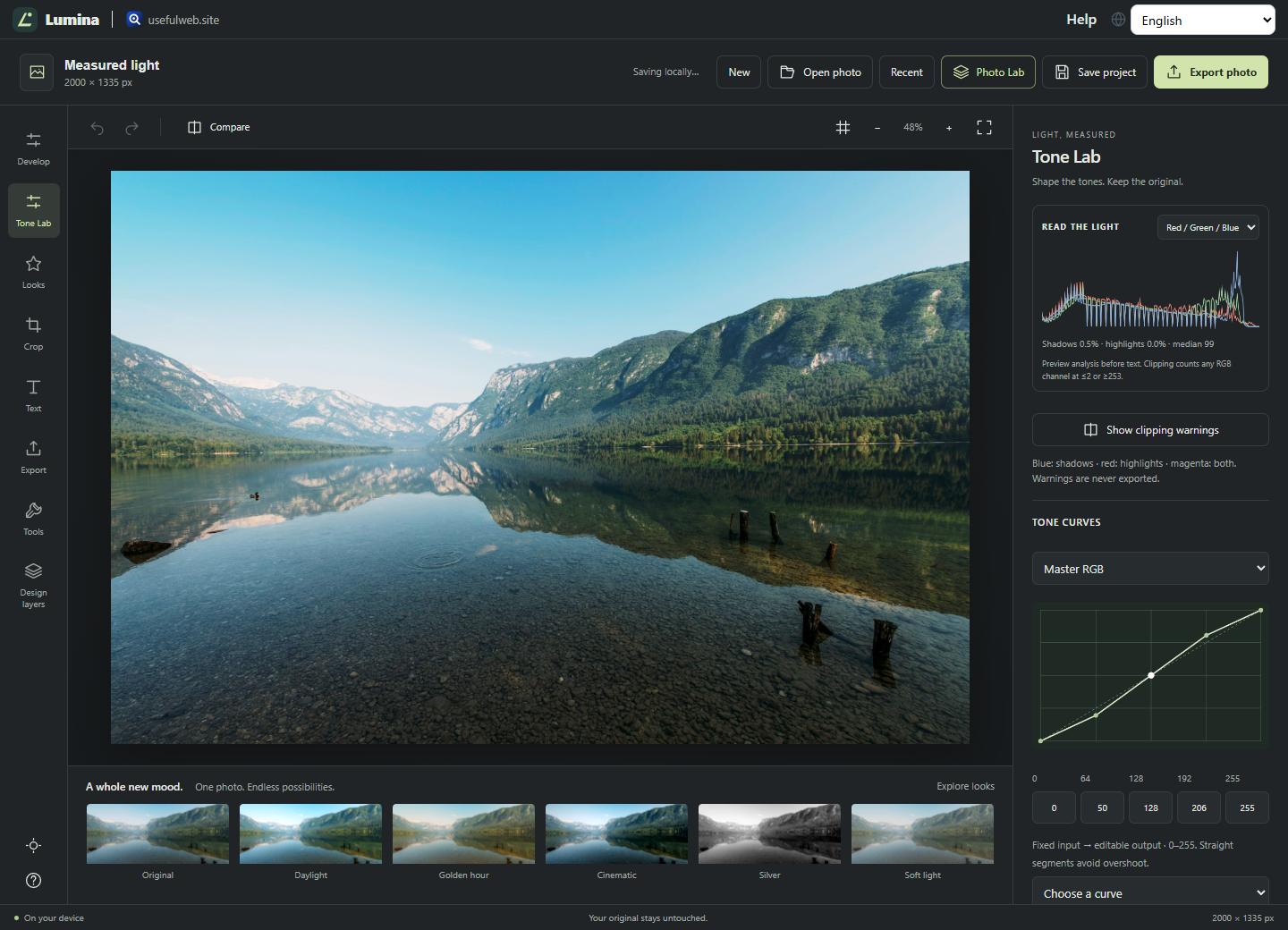
Read the light
The graph displays the edited preview's red, green and blue distributions. Switch to Luminance to inspect overall brightness. The median is the middle visible pixel's luma value. Fully transparent pixels are excluded; partially transparent pixels count once. This preview analysis is measured before text layers and may differ from a full-resolution export.
Show clipping warnings adds blue for pixels with any RGB channel at or below 2, red for any channel at or above 253, and magenta when both apply. It is a display overlay and never appears in a downloaded image. A clipping warning describes the current 8-bit image; it cannot tell you whether the camera's sensor data was clipped.
Shape a curve
Choose Master RGB to change all three channels, or select Red, Green or Blue to adjust a color channel. The horizontal axis is the input value and the vertical axis is the output. Five points are fixed at input 0, 64, 128, 192 and 255. Drag a point up or down, or type its output value in the matching field. Straight segments avoid overshoot between points.
Gentle contrast lowers shadows and raises highlights. Matte print lifts black and lowers white. Open shadows lifts darker tones. Presets replace the master curve; channel curves and other controls stay as they are. Reset selected curve restores the current channel to its diagonal. Undo and Redo include curve edits. On a phone, Expand Tone Lab gives the controls more space; Compact controls restores the smaller pane.
Set levels and midtones
Input black maps to zero and Input white maps to 255, so black must remain below white. Gamma above one brightens midtones; values below one darken them. Auto levels uses the 0.5th and 99.5th luminance percentiles from the current crop after white balance and Develop, before levels and curves. It is a starting point to adjust by eye. Flat images keep the full range.
Sample a neutral area
Pick a neutral area, then click a patch that should be gray. Lumina averages a 5 by 5 patch in the original crop, skipping black, clipped and transparent samples. Linear-light RGB gains bring the averaged patch toward neutral while preserving its luminance. Avoid strongly colored surfaces; they give the wrong reference. Escape cancels the picker. You can edit the three gains or reset white balance afterward.
The order is white-balance gains, Develop adjustments, levels and gamma, master curve, then the three channel curves. Existing Temperature and Tint controls can still add a creative color shift after neutral balance.
Reuse the settings
Save / load profile opens the profile library. Download profile saves a .lumina-profile.json file containing Develop and Tone Lab settings. It contains no photo, crop, orientation or text layers. Import it here or with the main Open photo button. Applying a profile replaces those adjustment settings and can be undone. Up to eight named profiles can be stored in this browser; download files for a durable backup.
Save project includes the original photo and editable tone settings in the usual .lumina.json file. Older Lumina projects open with neutral tone settings. Export photo applies the same engine to the full-resolution image and supports PNG, JPEG and WebP.
Apply the look to a collection
Open Photo Lab and choose Batch export. Capture current edit includes Develop, Tone Lab and text layers in the batch recipe, while crop and orientation remain separate. The recipe is saved in Photo Lab project files and its local draft. Export PNG to keep transparency, or choose JPEG or WebP for your collection.
Tone Lab processes images on your device. The separate Photo Histogram & Clipping Analyzer and Photo Tone Curves & Profile Processor upload images to the server and are also available through JSON API and MCP. The processor accepts the same downloaded profile. These are original sRGB tools inspired by RawTherapee's workflow; Lumina profiles are not camera PP3 or ICC profiles.