Tutorial 4 of 5
Design with images, text and reversible masks
Beginner 7 min
Build a layered cover, transform its elements, paint a mask and save an editable composition.
Start a composition
Open Design layers from the editor rail or Tools. Choose Try a design to explore the alpine cover, or New canvas to start empty. Canvas settings controls dimensions, background and transparency. Processing stays on your device.
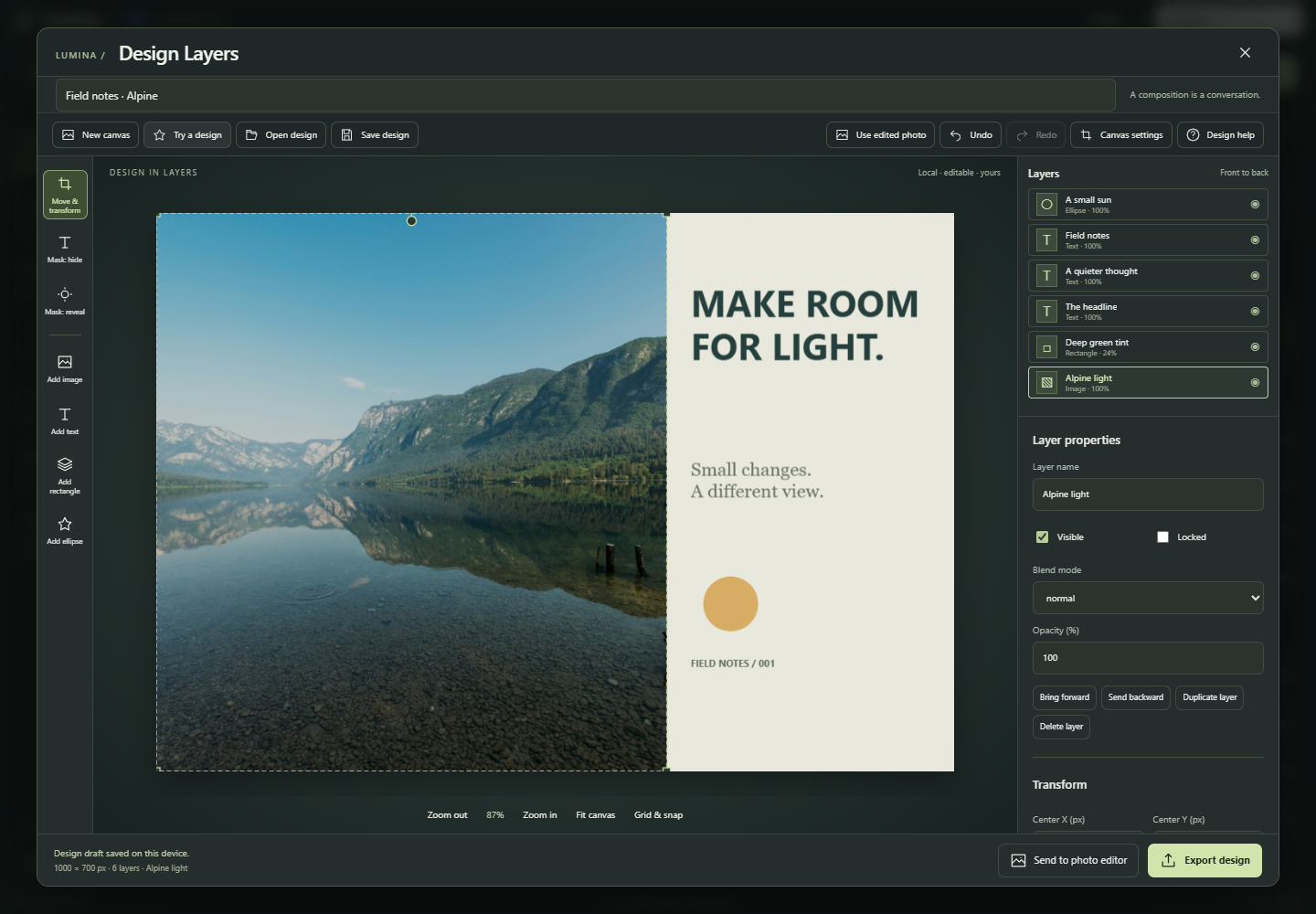
Arrange your layers
Add image accepts PNG, JPEG or WebP. Use edited photo brings the current photo editor result into the composition. Add text, rectangle or ellipse layers to finish your design. The top of the layer stack is the front of the composition. Select a layer to change its name, visibility, opacity or blend mode. Bring forward and Send backward change its position in the stack. Lock a finished layer to protect it while arranging other elements.
Move and transform
Choose Move & transform. Drag the selected layer, pull a corner to resize around its center, or use the round handle to rotate. Keep layer proportions preserves its aspect ratio. Hold Shift to preserve proportions or snap rotation. Numeric controls give exact pixel positions and dimensions; arrow keys nudge by one pixel, or ten with Shift. Grid & snap uses 25-pixel steps.
Hide without deleting
Select an unlocked layer and keep Enable mask checked. Choose Rectangle or Ellipse for a geometric clip; adjust its bounds and Inward feather for a softer edge. Mask: hide paints transparency, and Mask: reveal restores it. Brush width follows the shorter layer edge. Shape clips multiply the brush mask, so Reveal cannot extend beyond a shape clip. Invert mask reverses the combined result; disabling the mask shows the source. Clear brush strokes starts the brush mask over.
Export and keep an editable copy
Export design downloads PNG, JPEG or WebP at the canvas size. PNG and WebP preserve transparency; JPEG fills with the canvas background. Send to photo editor renders a flat copy for further photo adjustments. Save design downloads a .lumina-design.json file that keeps the editable layers, masks and imported images. Open design or the main Open button restores it. A local browser draft also recovers after reload; download a project for a durable backup. Editable design files retain imported image bytes, which can include source metadata. Image exports omit that metadata.
Useful shortcuts
Ctrl+S saves a design; Ctrl+Z and Ctrl+Shift+Z undo and redo. Ctrl+C, Ctrl+V and Ctrl+D copy, paste and duplicate a selected layer. Delete removes an unlocked layer. V selects Move & transform, B selects Mask: hide, and ? opens Design help. On phones, Properties toggles the layer and property drawer.
The separate layer transform, blend color and shape-mask tools are available through UsefulWeb, API and MCP. The shape-mask utility uploads images to the server. For plain-background removal, use the existing tool linked in Design help.