Tutorial 8 of 9
Compare image lettering and inspect font files
Beginner 7 min
Crop one text line, compare device or imported fonts, inspect glyph coverage and keep a typography shortlist.
Open Type Lab
Choose Type Lab on Lumina's editing rail or in Tools. The Text panel also links to it with Compare fonts from an image. You can open /app#type directly.
Try Editorial study, Wayfinding study, Terminal study or Handwritten study. These original samples use fonts rendered on your device, so their appearance can vary.
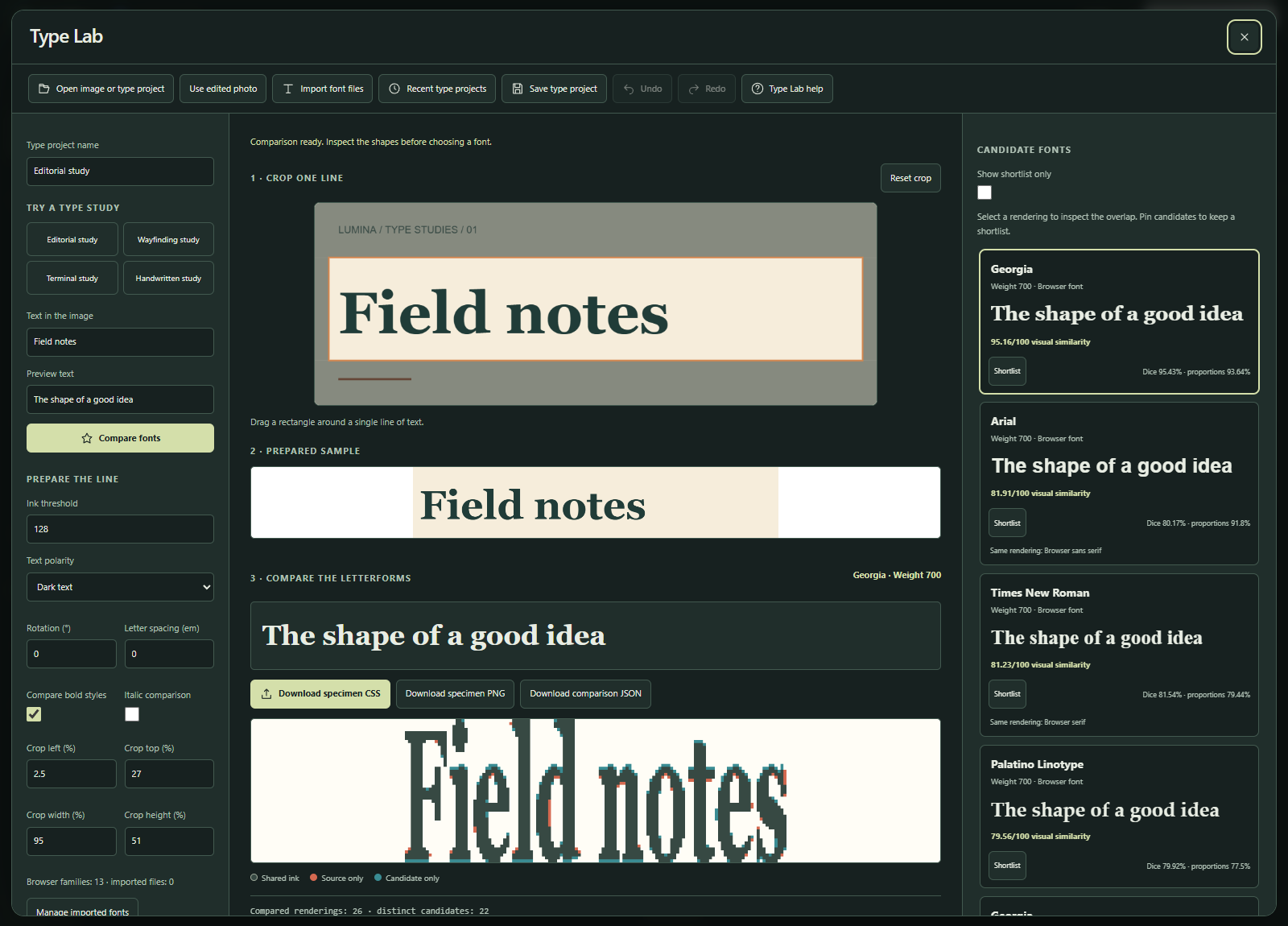
Prepare a reference
Open a PNG, JPEG, WebP or GIF (first frame), or choose Use edited photo. Images are processed locally, with an 8 MB / 16 MP input limit and a normalized PNG source up to 1024 pixels per side.
Drag a rectangle around one straight text line. Without a pointer, enter the Crop left (%), Crop top (%), Crop width (%) and Crop height (%) values; Reset crop selects the whole image again. The crop is applied before the rotation control, which allows ±15°. Avoid neighboring words, borders, shadows and textured backgrounds.
Enter the exact visible words and case in Text in the image. This is a manual transcription: Type Lab does not perform OCR. Under Prepare the line, set Ink threshold and Text polarity (dark or light text) so the 2 · Prepared sample preview shows clean lettering. Isolated single-pixel regions are removed.
Choose Compare fonts after changing text or settings. Valid draft settings autosave even before comparison; specimen exports stay disabled until the ranking is updated.
Compare candidates
Type Lab compares common browser font families at regular weight and, optionally, bold weight. Enable italic comparison or adjust letter spacing in em when the sample calls for it. Nonzero spacing requires a browser with Canvas letter-spacing support.
Import up to four TTF/OTF files, each up to 2 MB, to include your own faces. These files stay in your browser and project downloads. WOFF, WOFF2 and font collections are not supported. Browser substitutions and synthetic styles can change how a face looks; variable fonts use their default instance.
The ranking combines normalized letterform overlap and proportions. It searches ±2 normalized pixels for alignment and weights Dice overlap at 85% and aspect similarity at 15%. A score is visual similarity within the available candidates, not the probability that a font has been identified. There is no commercial font database search.
Select a candidate to inspect the overlay: dark pixels are shared, orange belongs only to the source, and teal belongs only to the candidate. Identical renderings are grouped with aliases. Each card shows the visual similarity, Dice overlap and proportion score. Use Shortlist and Show shortlist only to narrow your choices. The preview text can differ from the text in the reference image.
Inspect imported fonts
Manage imported fonts lets you inspect metadata, download an original file or remove it. Inspection reads family and style names, weight, width class, italic flag, variable-table presence, units per em, glyph count and available license text. Name fields are limited to 1024 characters.
Coverage checks supported Unicode cmap format 4 or 12 mappings for non-whitespace sample characters. A mapped glyph does not guarantee shaping, ligatures or emoji sequence support. A font with missing reference characters or a browser decoding error is excluded from matching. Missing preview characters get a fallback notice.
The metadata reader validates bounded table structures; it does not validate checksums, outlines or font safety. The browser remains responsible for decoding fonts.
Export and keep the project
- Download specimen PNG renders the selected face and preview text to a bitmap.
- Download specimen CSS records the family, weight, style and spacing. CSS for imported fonts expects the original font file beside the stylesheet; it does not upload or host that file.
- Download comparison JSON saves the reference text, settings, scores, selected candidate, aliases and shortlist, without image or font bytes.
- Save type project downloads a
.lumina-type.jsonfile with the normalized source image, imported font files and editable settings.
Open the project in Type Lab or through Lumina's main Open button. Project files are limited to 20 MB. Five recent projects autosave in separate browser storage. Download a backup because browser data can be cleared. Google Drive photo-project saving does not include Type Lab projects.
The project schema describes version 1. Ctrl+S saves, Ctrl+O opens, Ctrl+Z undoes and Ctrl+Shift+Z redoes. ? opens help when single-key shortcuts are enabled; Type Lab help has a switch to turn them off.
Related tools
Font File Inspector & Glyph Coverage exposes the same metadata reader as a server file tool; uploads leave the device. Letterform Mask Comparison compares two supplied binary masks through a form, JSON API or MCP without a font database.
WhatTheFont inspired the image-review and custom-text workflow. The implementation and samples are original.
Ready to try it?