Tutorial 18 of 22
Edit photos together in a team workspace
Intermediate 6 min
Save a Lumina photo to a shared workspace, invite your team with roles, see their edits live, resolve conflicts and comment on text layers.
Lumina saves your photos in this browser until you decide otherwise. With a team workspace, a photo project — the photo, every Develop and Tone Lab setting, the crop and the text layers — is shared with the people you invite. Without signing in, nothing changes — the workspace is always optional.
Sign in and save to a workspace
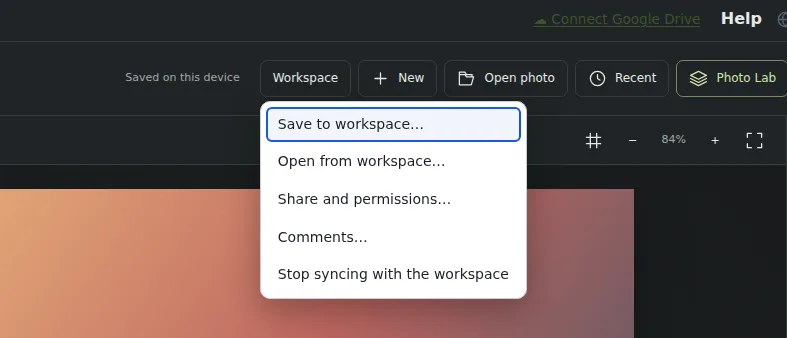
- Choose Workspace → Save to workspace…. If you are not signed in yet, sign in with a passkey (or Google) — a passkey account needs no e-mail address.
- Pick a workspace or create one, check the title and choose Save.
- The status chip next to the image size in the status bar now says Saved to and the workspace name. From now on every change is saved to the workspace automatically, about a second after you make it.
Signed out, nothing changes: your photo project keeps saving in this browser only, and the workspace items are simply optional.
Invite people and choose who may edit
Choose Share and permissions… to see the members of the workspace, create an invite link with a role and copy a direct link to this photo project. Roles decide what people can do:
- Owner, Admin, Member can edit. Members always manage the documents they created.
- Viewer can open and read, but not change anything.
- Guest sees only documents that a sharing rule opens for them.
Under Access to this document you can raise or lower the access of a role or a single person for just this photo project.
Work together live
Teammates open the photo project with Open from workspace… or with the direct link (it ends in #teamdoc=…). While several people have it open, the chip shows their initials. When someone else saves, their version loads automatically if you have no unsaved changes. If you both changed it at the same moment, you choose: Load their version, Keep mine and overwrite theirs, or Save mine as a copy.
Opening another project, a template or a file stops syncing so the shared photo project is never overwritten by accident. Stop syncing with the workspace does the same on purpose; your copy stays saved in this browser either way.
Read only for viewers
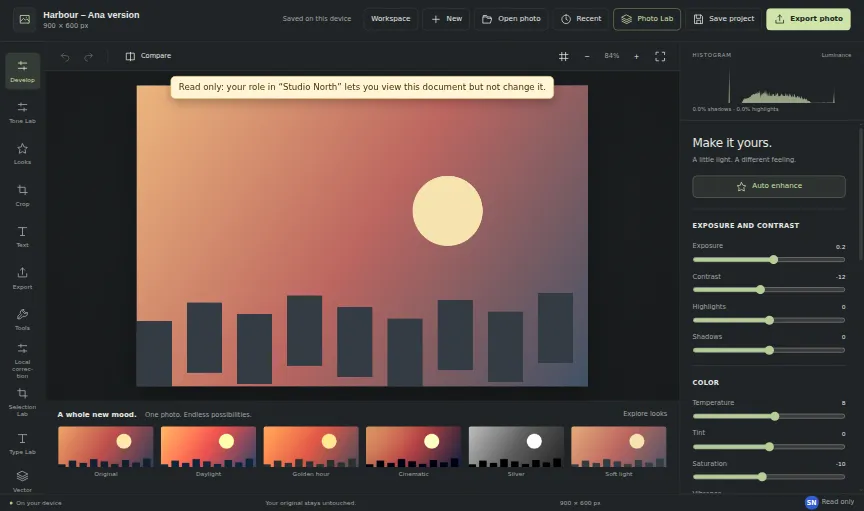
People with the Viewer role see a yellow note: Read only: your role in “…” lets you view this document but not change it. Sliders, looks, crop and text layers stay where they are; you can still zoom, compare, export or download a copy. Every editing action explains why it is not available instead of changing the photo project.
Comments
Choose Comments… to read and write comments on the shared document. When a text layer is selected, tick About … to attach your comment to it; the list shows where each comment belongs. Members can comment, viewers can read the comments, and you can delete your own.
What is stored where
The photo travels as an attachment of the workspace document, counted against the 50 MB storage of the workspace. A decoded photo larger than 10 MB is shared as a high-quality JPEG copy; your local original is not changed. The labs with their own files — Vector Lab, Type Lab, Palette Studio, Design layers, Compositor and the others — keep working without the workspace; share their results by exporting them into the photo or as files.
Ready to try it?