Tutorial 9 of 9
Select colors and edit a local area
Intermediate 7 min
Build selections with a color wand or shapes, preview local edits, and export transparent PNGs and masks.
Open Selection Lab
Choose Selection Lab on Lumina's editing rail or in the Tools panel, or open /app#selection directly. Pick one of the four images under Start with a sample, choose Open image or selection project for a PNG, JPEG, WebP or GIF up to 8 MB and 16 MP, or choose Use edited photo to bring in the photo you are editing. Processing stays on your device. The first GIF frame is used, and images are reduced to at most 1024 pixels per side.
Build a selection
Open Build a selection, set Selection tool to Color wand and click a color in the preview. Color tolerance (0–255) compares each candidate pixel with the clicked seed. Lower values select close matches; higher values accept larger differences. Contiguous pixels only follows four-connected neighbors. Turn it off to select matching colors anywhere, including separate objects.
Without a pointer, enter Seed X (%) and Seed Y (%) and choose Select from coordinates. A coordinate of 100% addresses the final pixel. Clicking the image fills in these fields for you, so you can repeat a selection exactly.
Choose Rectangle or Ellipse and drag on the image. A dashed outline follows the drag. Alternatively, enter the Left (%), Top (%), Width (%) and Height (%) values and choose Select from coordinates; the shape must fit inside the image.
Selection combination decides how the next selection meets the current one: Replace selection, Add to selection, Subtract from selection or Intersect selection. Select all, Deselect and Invert selection work on the whole image. The line below the preview reports how many pixels are selected and the box that contains them. The cyan overlay displays the hard binary selection; clear Show selection overlay to judge colors and transparency. Preview zoom and Fit preview help with small details.
Preview an edit
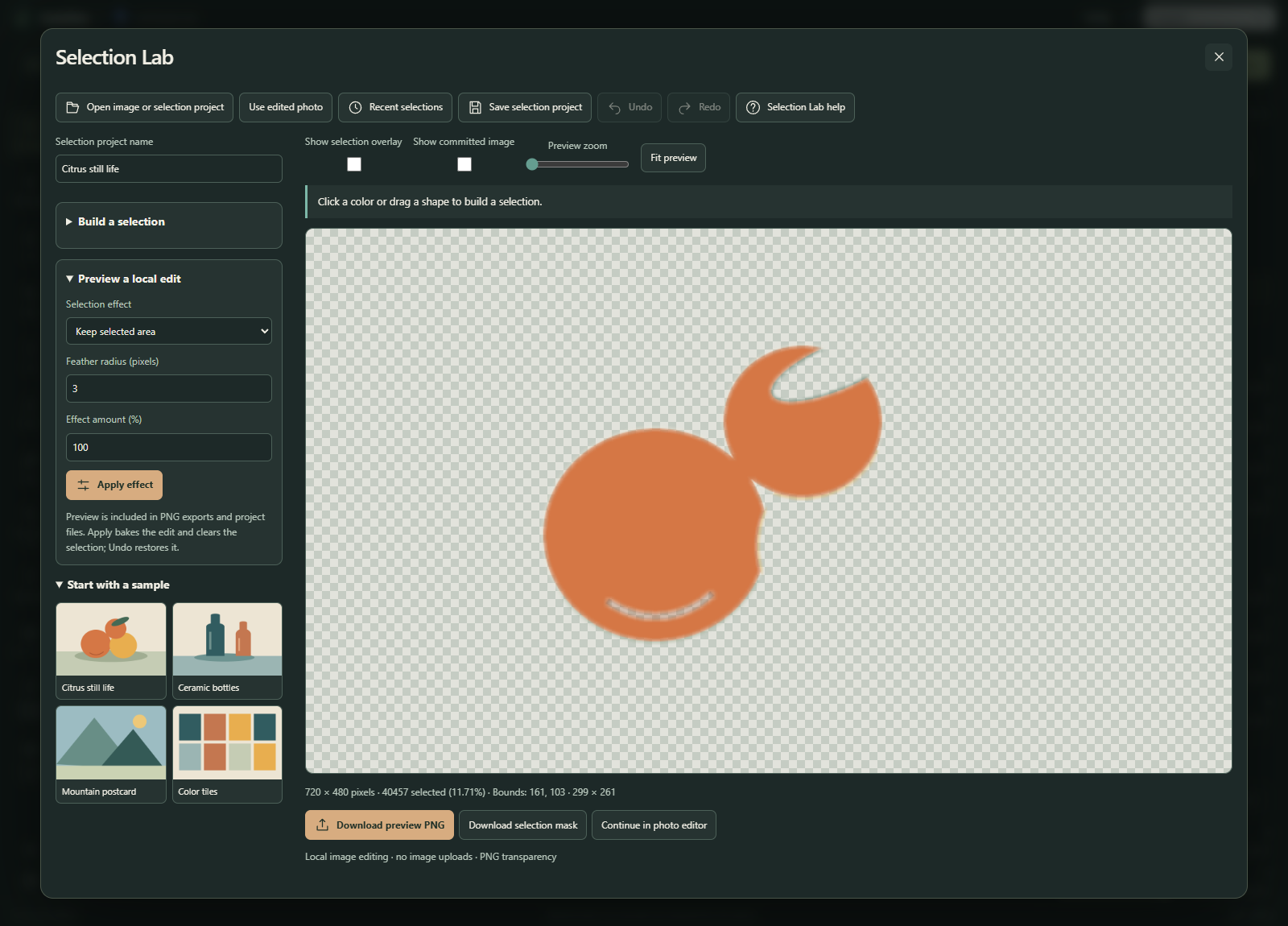
Open Preview a local edit and choose a Selection effect:
- Fill selected area composites a color over the selected pixels.
- Keep selected area removes pixels outside the selection, preserving existing transparency.
- Erase selected area removes selected pixels.
- Adjust selected area changes local exposure and saturation.
Feather radius (pixels) softens both sides of the boundary with a box filter. Effect amount (%) mixes the effect with the committed image. Counts and bounds describe the hard selection before feathering. With no selected pixels, the browser preview remains unchanged and Apply is disabled.
Show committed image lets you inspect the image before the pending effect. Apply effect bakes the preview into the working image and clears the selection. Undo restores the previous image, mask and pending settings. Up to 20 states are kept within a 32 MB string budget.
Keep or export the result
Download preview PNG exports the pending effect without the cyan overlay. Download selection mask produces an opaque grayscale PNG: white is selected, black is unselected, and gray is feathered coverage. Both use the working dimensions.
Continue in photo editor opens the flattened preview as a new photo for additional development, text and export.
Save selection project downloads a .lumina-selection.json file containing the committed PNG, packed hard selection and pending effect settings. Reopening reproduces the preview. Five recent projects autosave separately in this browser. Download a project for a durable copy; photo-project Google Drive saving does not include selection projects.
Open a saved project with Open image or selection project or Lumina's main Open button; Recent selections lists the autosaved ones. The project schema documents mask packing and bounds.
Keyboard
Every step works without a pointer: the coordinate fields replace clicking and dragging, and the status line announces each change. Ctrl+S saves, Ctrl+O opens, Ctrl+Z undoes and Ctrl+Shift+Z redoes. When single-key shortcuts are on, F fits the preview and ? opens help; switch them off in Selection Lab help if they interfere with your assistive technology.
This workflow takes inspiration from Paint.NET's selection tools. It uses deterministic color matching, not automatic subject detection, a clone stamp or a local brush.
Ready to try it?