Tutorial 10 of 10
Blend a nine-color grid gradient
Beginner 5 min
Turn palette colors or a photo into a smooth 3 × 3 color grid gradient, edit every point, undo changes and export a PNG or an editable grid project.
Open the color grid
Open Palette Studio from Lumina's editing rail or the Tools panel and choose Color grid gradient in the generator column. The grid opens as its own window on top of Palette Studio. The first time, its nine points are filled from the active palette group, in swatch order; a group with fewer than nine colors repeats them.
The preview blends the nine points bilinearly: point 1 is the top-left corner, point 3 the top-right, point 5 the center and point 9 the bottom-right. Between neighboring points, the red, green and blue values change in straight lines in encoded sRGB. This is simple and predictable, but not perceptually uniform, so a midpoint between two saturated colors can look darker or duller than expected.
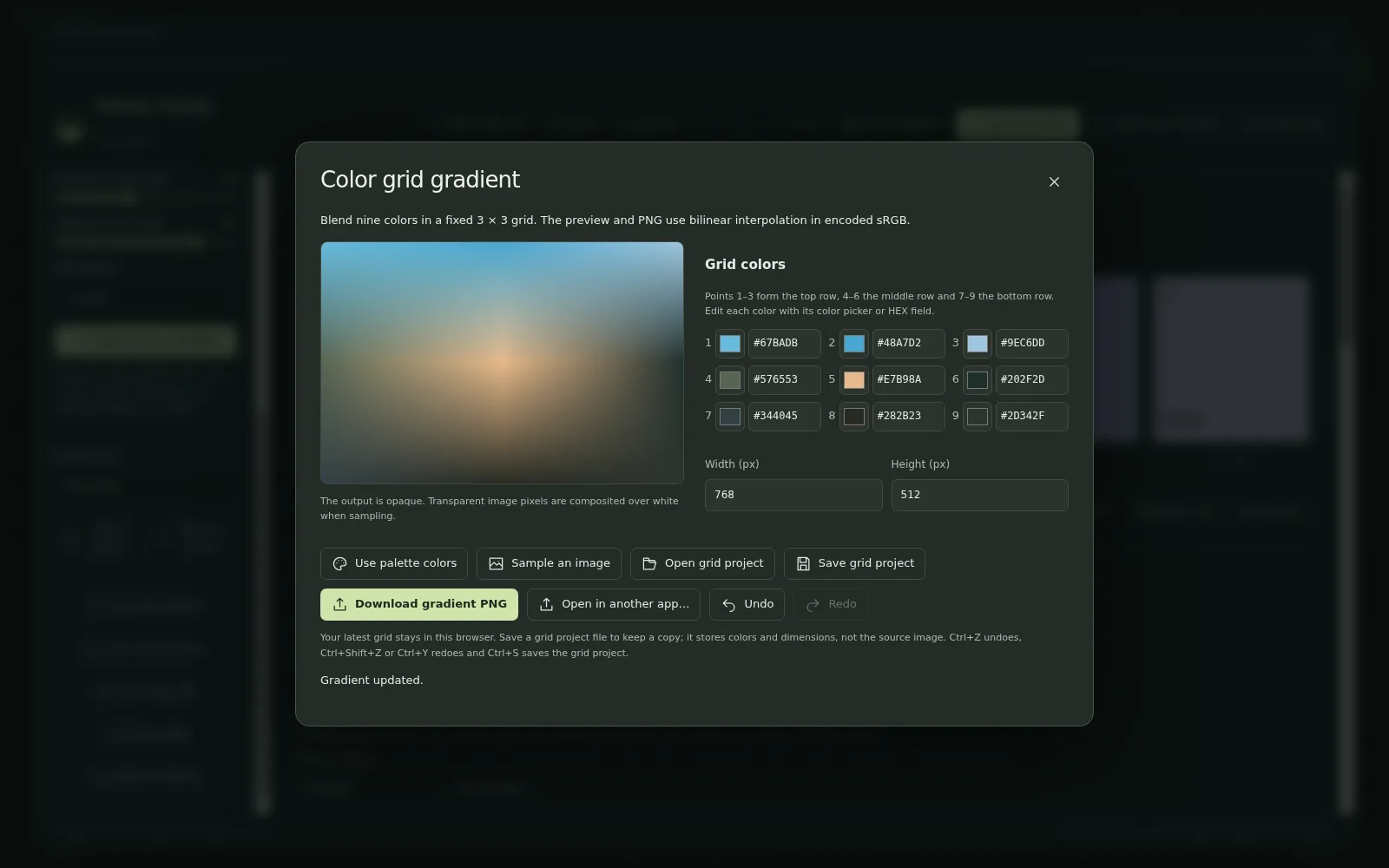
Edit the nine points
Under Grid colors, each point has a color picker and a HEX field. Type a six-digit value such as #E7B98A (the # is optional) and press Enter or Tab. Invalid values are rejected, the field returns to its previous color and the status line explains why.
Width (px) and Height (px) set the output size from 128 to 1024 pixels per side. The grid stretches to any rectangle, so a wide banner simply spreads the columns further apart.
Use palette colors fills the points again from the active palette group, keeping the current size. Undo and Redo keep up to 30 changes while the window is open; with the keyboard, use Ctrl+Z, Ctrl+Shift+Z or Ctrl+Y, and Ctrl+S saves the grid project. Undo inside a HEX field edits the text instead.
Sample a photo
Sample an image reads a local PNG, JPEG or WebP up to 12 MB and 16 megapixels. Lumina scales it to at most 400 pixels on its long edge and averages a small patch around each of the nine positions: the corners, the middle of every edge and the center. Transparent pixels are blended over white first. The image never leaves your device and is not stored in the grid.
The result is a soft color study of the photo, not a reconstruction of it. Sampling is one change, so Undo brings back the previous colors. Fine-tune single points afterwards, for example to warm the center or darken the bottom row.
Export and keep your grid
Download gradient PNG saves the preview at the chosen size. The PNG is always opaque. Open in another app… hands the same PNG to another usefulweb premium app, for example as a background.
Your latest grid stays in this browser and reopens next time. Save grid project downloads a small .lumina-grid.json file with the nine colors and the size, but not the source photo. Open it again with Open grid project inside the grid window, or with Lumina's main Open button. The format is documented in the color grid schema.
The grid is separate from your palette collection: editing grid points does not change your swatches, and Palette Studio's Recent list and share links do not include the grid.
Ready to try it?